What languages does Learnr AI support?
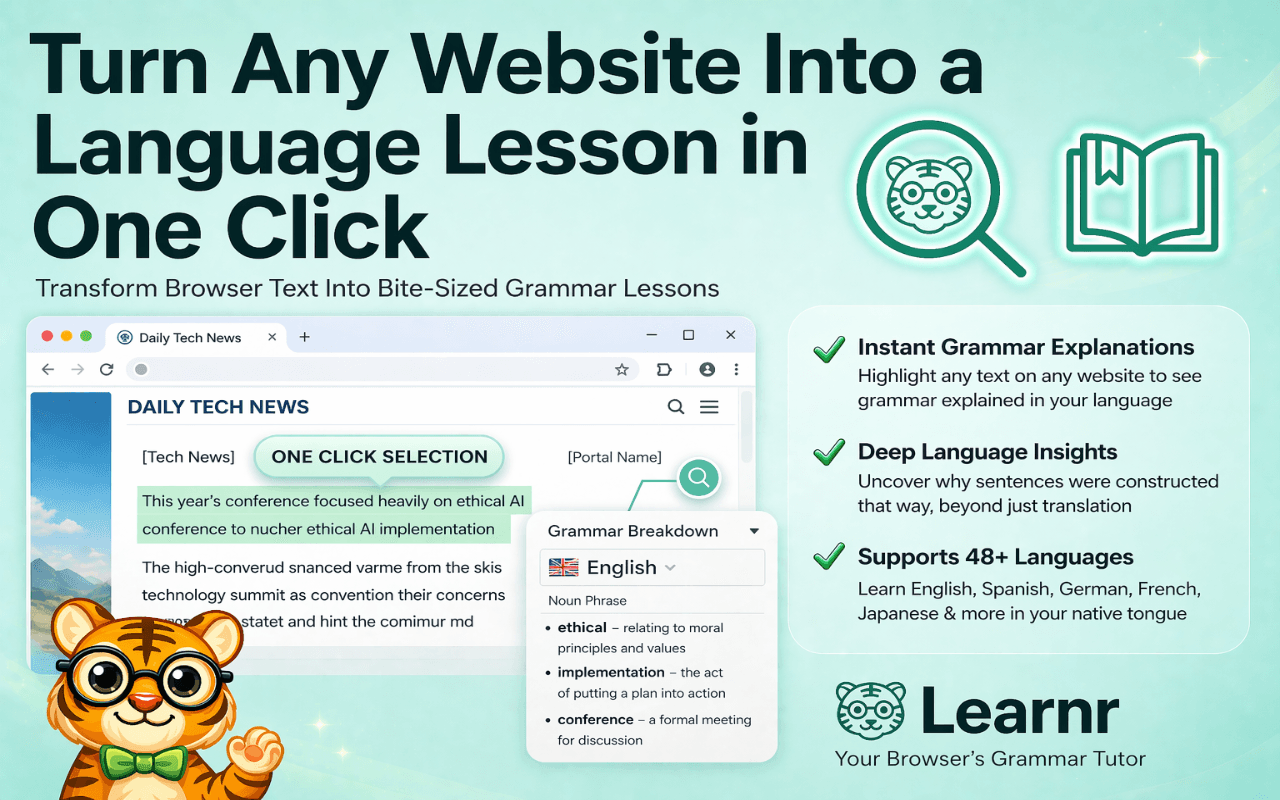
Learnr AI is positioned for a broad set of commonly learned languages including Spanish, French, German, Japanese, Korean, Dutch, Arabic, Mandarin, and more.
All Toolr Extensions
Move between Toolr extensions for shopping, language learning, studying, LinkedIn writing, and summarizing without losing the thread.


This FAQ answers the most common questions about Learnr AI, including how it works, who it is for, and what to expect after installing it.
Learnr AI is positioned for a broad set of commonly learned languages including Spanish, French, German, Japanese, Korean, Dutch, Arabic, Mandarin, and more.
Yes. Learnr AI is meant to work on text-heavy websites you already browse, rather than inside a closed lesson catalog.
They solve different parts of language learning. Duolingo is structured practice, while Learnr AI focuses on contextual immersion while you read real content.
Like other Chrome extensions, Learnr AI is primarily a desktop Chrome product.
Yes. Learnr AI offers a free entry point with premium expansion for deeper AI help and tracking.
It teaches vocabulary inside real reading contexts instead of isolated card review sessions.
Yes. Users can switch target languages and use the extension for maintenance across more than one language.
Yes. The product positioning emphasizes tracking and reinforcement so learners spend more time on words they do not yet own.
Open the Chrome Web Store listing for Learnr AI and click "Add to Chrome". Installation takes a few seconds.
Learnr AI is designed to work inside your normal browsing flow, so the next step is simply visiting the relevant site or document.
Activate Learnr AI from the Chrome toolbar or the page overlay and let it handle the task without forcing you into another app.
Take the suggested output, summary, comparison, or draft and continue your workflow without extra copy-paste.
Keep exploring
Find more Toolr guides, comparisons, workflows, and practical answers related to this topic.
Learnr AI is available in the Chrome Web Store and starts working inside your normal browsing workflow in seconds.
Add Learnr AI to Chrome